How to Play PS2 Games Smoothly on Aethersx2?
Playing classic PlayStation 2 games on modern Android devices has become much easier thanks to Aethersx2. This emulator gives gamers a chance to enjoy their favorite titles with better graphics, improved controls, and faster loading times. However, getting smooth gameplay depends on more than simply installing the app.
Many players experience lag, frame drops, or audio glitches because they miss a few important settings. The good news is that most of these problems can be fixed with the right setup. This guide explains everything you need to know to enjoy stable PS2 gaming on your phone.
Whether you are playing action games, racing titles, RPGs, or sports games, a few smart changes can improve your gaming experience. By following the tips below, you can get better performance without needing expensive hardware.
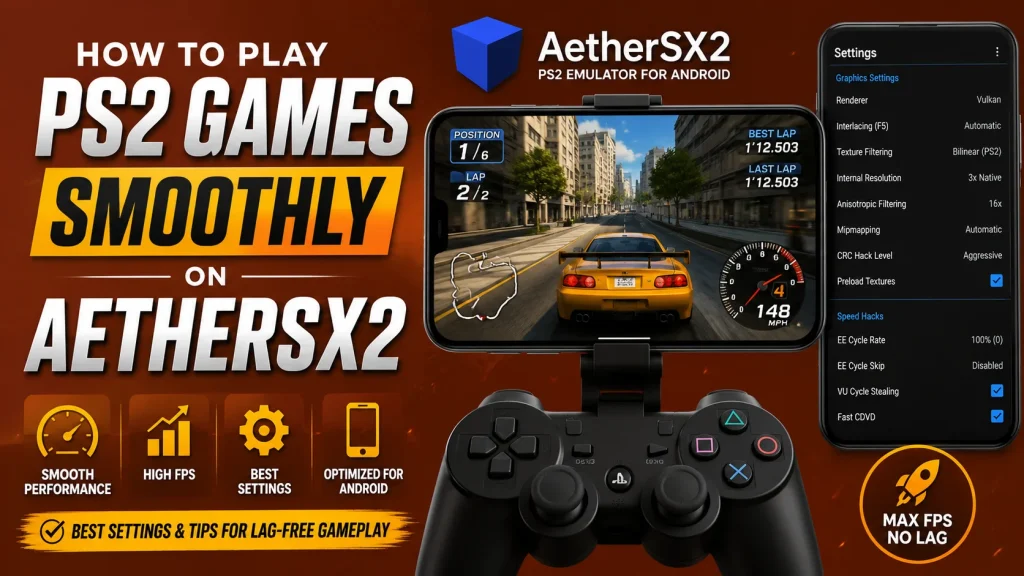
Why Choose Aethersx2 for PS2 Gaming?
Among Android PS2 emulators, this option stands out because it delivers excellent compatibility and impressive performance on supported devices. It supports many popular PlayStation 2 games while giving users full control over graphics, controls, and performance settings.
Some key features include:
- High compatibility with many PS2 games
- Custom graphics settings
- Save and load game states
- External controller support
- Upscaled game resolution
- Memory card management
- Multiple rendering options
These features make it one of the most popular choices for Android users who enjoy retro gaming.
Check Your Device Before Playing
Even the best emulator cannot perform well on weak hardware. Before installing games, make sure your Android device meets basic requirements.
A good gaming phone should include:
- A modern Snapdragon processor or another powerful chipset
- At least 6 GB RAM
- Android 8.0 or newer
- Enough free storage for game files
- Good cooling during long gaming sessions
Higher-end devices naturally deliver smoother gameplay and allow higher graphics settings.
Use the Correct BIOS File
The BIOS file is required for PS2 emulation. Without it, games will not start properly.
Keep these points in mind:
- Use a valid BIOS from your own PlayStation 2 console.
- Store the BIOS in an easy-to-find folder.
- Select the correct region for your games.
- Avoid damaged or incomplete BIOS files.
Using the correct BIOS improves compatibility and reduces loading issues.
Best Graphics Settings
Graphics settings have the biggest effect on game performance. Finding the right balance between quality and speed is important.
Recommended Settings
- Native resolution for slower phones
- 2x resolution for powerful devices
- Vulkan renderer if supported
- Bilinear filtering enabled
- Texture filtering on default
- V-Sync disabled unless needed
- Hardware download mode on default
Lower settings usually provide higher frame rates while still keeping games enjoyable.
Adjust Performance Settings
Performance settings control how your processor handles emulation. Small changes can greatly improve stability.
Helpful options include:
- Enable Multi-Threaded VU1
- Keep EE Cycle Rate on default unless testing
- Use Fast Boot when available
- Leave advanced settings unchanged unless necessary
Changing many settings at once makes troubleshooting difficult. Test one adjustment before moving to another.
Choose the Right Game Format
Game file format also affects loading speed and storage usage.
Common formats include:
- ISO
- CHD
- BIN
CHD files save storage while maintaining good performance. They are often a great choice for mobile devices with limited space.
Connect a Game Controller
Touch controls work well for many games, but a physical controller offers a much better experience.
Popular controller options include:
- Bluetooth gamepads
- USB controllers with OTG support
- Console controllers paired through Bluetooth
After connecting the controller, customize button mapping inside the emulator settings for comfortable gameplay.
Reduce Lag and Frame Drops
If games still lag, try these practical solutions.
Close Background Apps
Running multiple applications uses valuable RAM and CPU resources. Close unnecessary apps before starting your game.
Lower Internal Resolution
Reducing rendering resolution often increases frame rates immediately, especially during demanding scenes.
Keep Your Device Cool
Phones slow down when they become too hot. Remove thick cases during gaming sessions and avoid direct sunlight.
Free Storage Space
Low storage may reduce system performance. Keep several gigabytes free for smoother operation.
Best Types of Games for Stable Performance
Not every PS2 title has the same hardware demands.
Games that usually run well include:
- Fighting games
- Sports games
- Puzzle games
- Platform games
- Older racing games
Large open-world games and titles with heavy visual effects may require stronger hardware or lower graphics settings.
Common Problems and Quick Fixes
Here are several issues players often face along with simple solutions.
| Problem | Solution |
| Black screen | Check BIOS and renderer settings |
| Slow gameplay | Lower resolution and close background apps |
| Audio stuttering | Reduce graphics load |
| Controller not working | Reconfigure controller mapping |
| Game crashes | Try another renderer or update game settings |
Testing one solution at a time helps identify the real cause.
Tips for the Best Gaming Experience
Small habits can improve overall performance.
- Update your emulator when new versions become available.
- Keep enough battery before long gaming sessions.
- Save progress using both memory cards and save states.
- Organize your game library into folders.
- Back up important save files regularly.
- Test graphics settings for each game individually.
Every game behaves differently, so spending a few minutes adjusting settings often produces much better results.
Conclusion
Playing PlayStation 2 games on Android is easier than ever with Aethersx2. The right device, proper BIOS, balanced graphics settings, and a few performance tweaks can make a huge difference in gameplay. Most lag and stability problems can be solved by lowering demanding settings and keeping your phone optimized.
If you want the best experience, take time to test each game’s settings instead of using one setup for every title. With a little patience, Aethersx2 can deliver smooth gameplay, responsive controls, and hours of classic PS2 entertainment right from your Android device.