
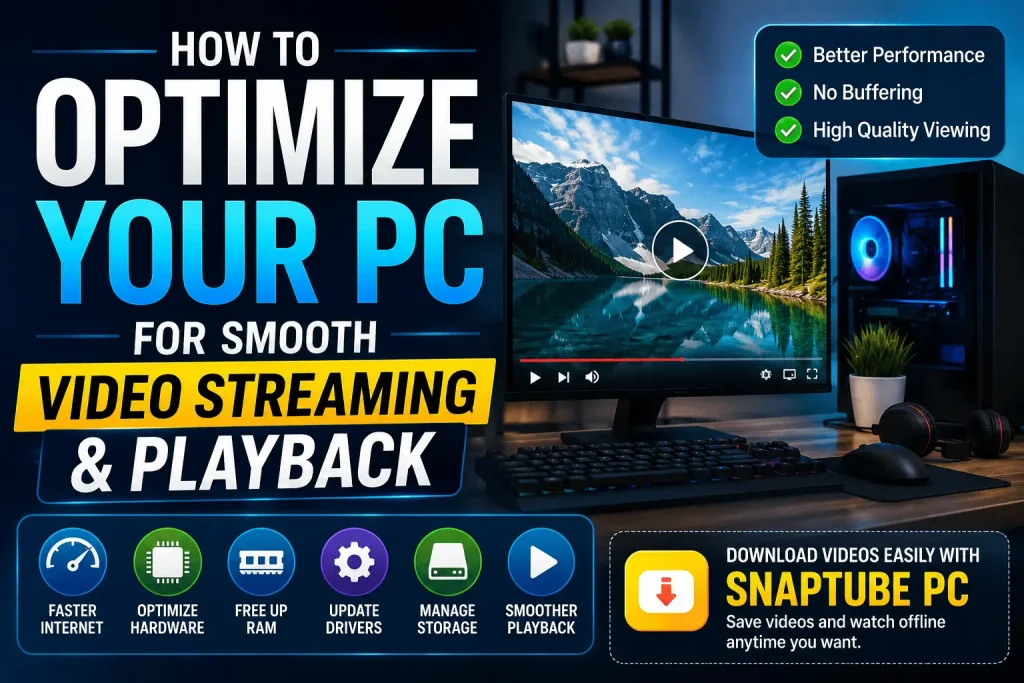
How to Optimize Your PC for Smooth Video Streaming and Playback
Watching videos on a PC should be simple, but poor performance can quickly ruin the experience. Buffering, delayed playback, dropped frames, and slow loading can make even a good video frustrating to watch. The problem can become more noticeable when you stream high resolution content or keep several applications running at the same time.
The good news is that you can improve your viewing experience with a few simple changes. From managing background applications to choosing the right video quality, several small adjustments can make a noticeable difference. If you also prefer downloading content for offline viewing, Snaptube PC can be a practical option for managing supported videos and reducing the need for continuous streaming.
Check Your Internet Connection
Your internet connection is one of the first things to check when video playback is not smooth. Even a powerful PC can struggle with streaming when the connection is unstable.
Run a speed test and check whether your connection provides consistent speeds. A stable connection is especially important for high resolution videos.
If possible, use a wired Ethernet connection for your PC. WiFi can also work well, but distance from the router, network congestion, and other connected devices can affect performance.
If several devices are using the same connection, consider reducing unnecessary network activity while watching high quality videos.
Close Unnecessary Background Applications
Background applications can consume valuable system resources. Web browsers with many open tabs, game launchers, cloud synchronization tools, and other programs may use RAM and CPU power while you are watching a video.
Before starting a high resolution video, close applications that you do not need. You can also open the Windows Task Manager to identify programs consuming significant CPU, memory, or network resources.
Reducing unnecessary background activity can help your PC dedicate more resources to video playback.
Choose the Right Video Resolution
Higher resolution does not always mean a better viewing experience if your hardware or internet connection cannot handle it smoothly.
For example, 4K video requires more processing power, bandwidth, and storage than 1080p content. Consider your screen size and hardware before selecting a resolution.
For everyday viewing:
- 720p can work well on smaller screens
- 1080p provides a good balance between quality and performance
- 1440p is suitable for compatible high resolution displays
- 4K provides excellent detail but requires more capable hardware
Choosing a suitable resolution can reduce unnecessary system and network load.
Keep Your Graphics Drivers Updated
Graphics drivers play an important role in video playback. Manufacturers regularly release driver updates that can improve compatibility, performance, and stability. An outdated driver may sometimes cause playback problems, especially with newer video formats or applications.
Check whether your graphics card manufacturer provides a newer driver for your system. After installing an update, restart your PC and test video playback again.
Use Hardware Acceleration When Available
Modern browsers and video applications can use hardware acceleration to move certain video processing tasks from the CPU to the GPU. This can help reduce CPU usage during playback on compatible systems.
Most popular browsers provide a hardware acceleration option in their settings. If you experience unusual playback problems after enabling it, you can also test the setting by switching it off and comparing the results.
The best configuration depends on your graphics hardware, drivers, browser, and operating system.
Keep Enough Free Storage Space
Storage can also affect your overall PC experience. When a drive becomes nearly full, Windows and other applications may have less space available for temporary files and normal system operations.
This becomes especially important if you regularly download large videos. Remove files that you no longer need and move large media collections to another drive when appropriate. An SSD can also provide faster file access than an older mechanical hard drive.
If you use a video downloader, select the resolution that matches your actual needs instead of downloading every file in the highest available quality.
Consider Offline Viewing
Streaming the same video repeatedly can use internet data every time you watch it. Downloading permitted content once can be more convenient when you plan to watch it again later.
This is where Snaptube can be useful for users who want to prepare suitable video content for offline viewing. Instead of relying on a continuous connection, supported content can be saved to your device and watched later. You can download any emulator like Snaptube Bluestacks for using Snaptube on the PC.
The main benefit is convenience. You can prepare content while connected to WiFi and then access the saved files when you do not want to depend on streaming.
Always download content only when you have permission to save it and follow the rules of the platform and content owner.
Reduce Browser Load
Your browser can consume significant resources when multiple tabs and extensions are active. If video playback feels slow, close tabs that you are not using. You can also review browser extensions and remove unnecessary ones.
Using a dedicated browser window for streaming can sometimes make resource management easier. Also avoid opening multiple high resolution videos simultaneously unless your PC has enough processing power and memory to handle them.
Check Your PC Temperature
High temperatures can affect system performance. When a CPU or GPU becomes too hot, the system may reduce its operating speed to control temperatures. This can lead to slower performance during demanding tasks.
Make sure your PC has adequate airflow. Keep ventilation areas clear and clean dust from the cooling system when necessary.
For laptops, avoid blocking the ventilation openings while watching videos or running demanding applications.
Update Your Operating System and Apps
Keeping Windows, browsers, graphics drivers, and media applications updated can improve compatibility and stability. Updates may also fix bugs that cause playback problems.
However, if a particular update causes an issue, check the application’s official support resources for troubleshooting steps. Regular maintenance can help prevent small software problems from turning into bigger performance issues.
Final Thoughts
Smooth video streaming depends on more than internet speed. Your CPU, GPU, RAM, storage, browser, graphics drivers, and background applications can all influence playback performance.
Simple steps such as closing unnecessary programs, choosing a suitable resolution, keeping drivers updated, maintaining free storage, and improving airflow can help your PC perform better.
For people who regularly watch videos, offline viewing can also reduce dependence on continuous streaming. Snaptube can provide a convenient way to manage supported downloads, while users who want an Android environment on their PC can explore compatible emulator options.
The best setup is one that matches your hardware, internet connection, storage capacity, and viewing habits.